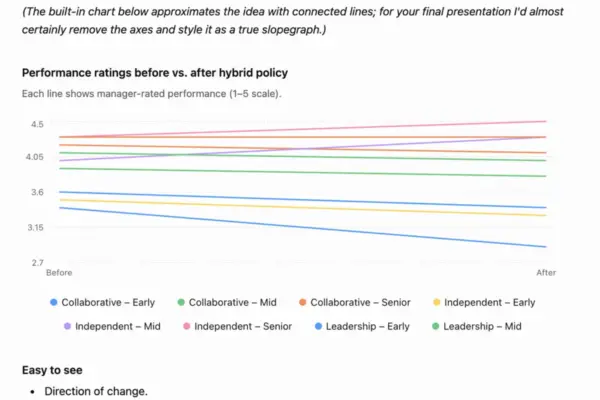
In the modern corporate and analytical landscape, the sheer volume of data generated daily requires a sophisticated approach to communication. Whether utilizing advanced graphing tools or relying on artificial intelligence assistants to rapidly generate preliminary drafts, professionals face the ongoing challenge of making complex information digestible. While modern software can construct a comprehensive chart in seconds and even apply automated highlighting features, it fundamentally lacks human context. Software programs do not inherently know which data points matter most to a specific audience or what narrative the presenter is trying to convey. That crucial analytical judgment remains the responsibility of the communicator. When used thoughtfully, color stands out as one of the most immediate and effective instruments available to dramatically improve the clarity of a graph.
For many professionals, mastering this level of intentional design within spreadsheet platforms like Microsoft Excel, or within charts embedded in word processing and presentation software, presents a persistent challenge. To understand how purposeful design elevates data storytelling, analysts often examine practical case studies. A classic example involves analyzing year-over-year sales changes for various cat food brands manufactured by a major pet food company. Drawn from professional data communication exercises, this dataset illustrates the transformation from a standard, software-generated chart into an insightful, explanatory communication tool.

Moving Beyond Default Settings: Starting in Greyscale
The foundation of effective visual communication often begins by stripping away distracting elements and establishing a neutral baseline. A recommended best practice for data analysts is to start by rendering charts entirely in shades of grey, reserving color strictly for the specific data points that require audience focus.
A greyscale chart serves a dual purpose. First, it establishes a neutral foundation that prevents the human eye from being overwhelmed by chaotic color palettes. Second, it acts as a visual reminder that additional refinement is necessary before a graphic is ready for presentation, encouraging a more deliberate approach to where and why color should be introduced.
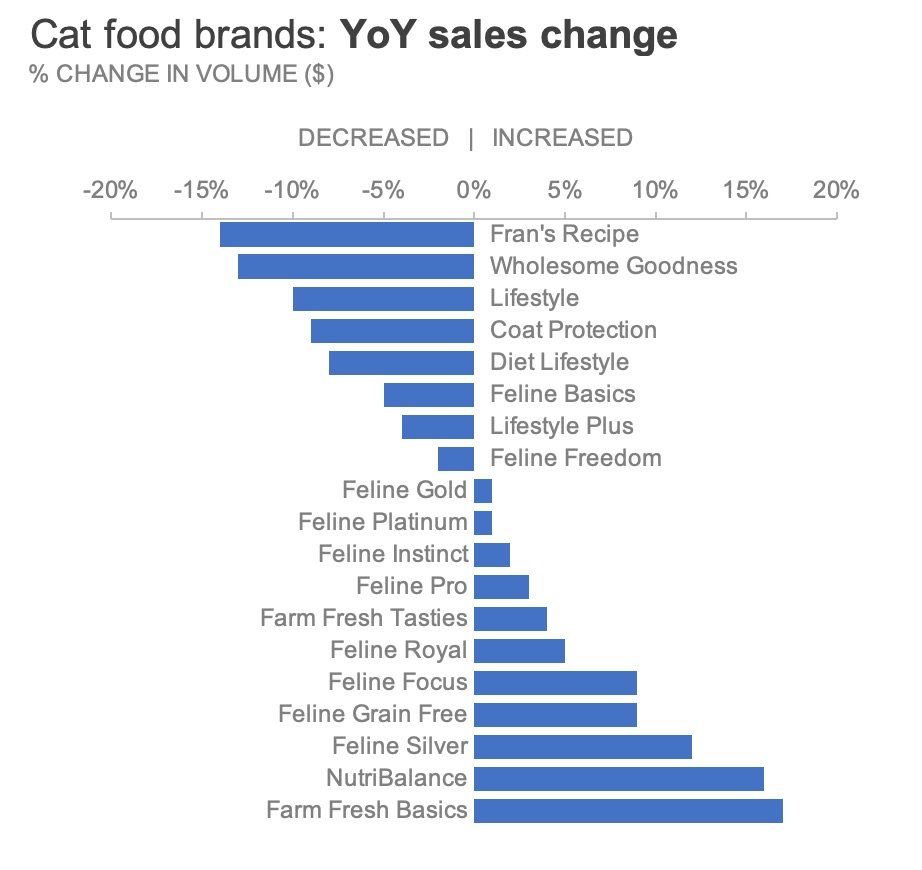
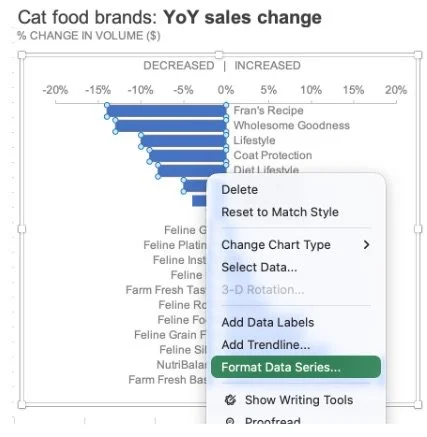
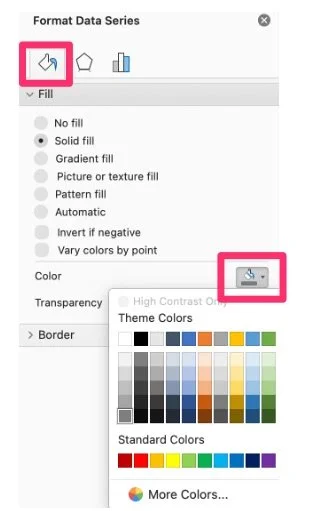
In standard spreadsheet applications, this process begins by removing default software colors and replacing them with a uniform neutral grey. By accessing the formatting menus associated with the data series, users can alter the fill properties to establish this clean slate. For analysts who frequently generate reports, creating a clean greyscale version and saving it as a reusable template eliminates the need to repeat these foundational formatting steps for every new project.
Directing Attention by Highlighting What Matters
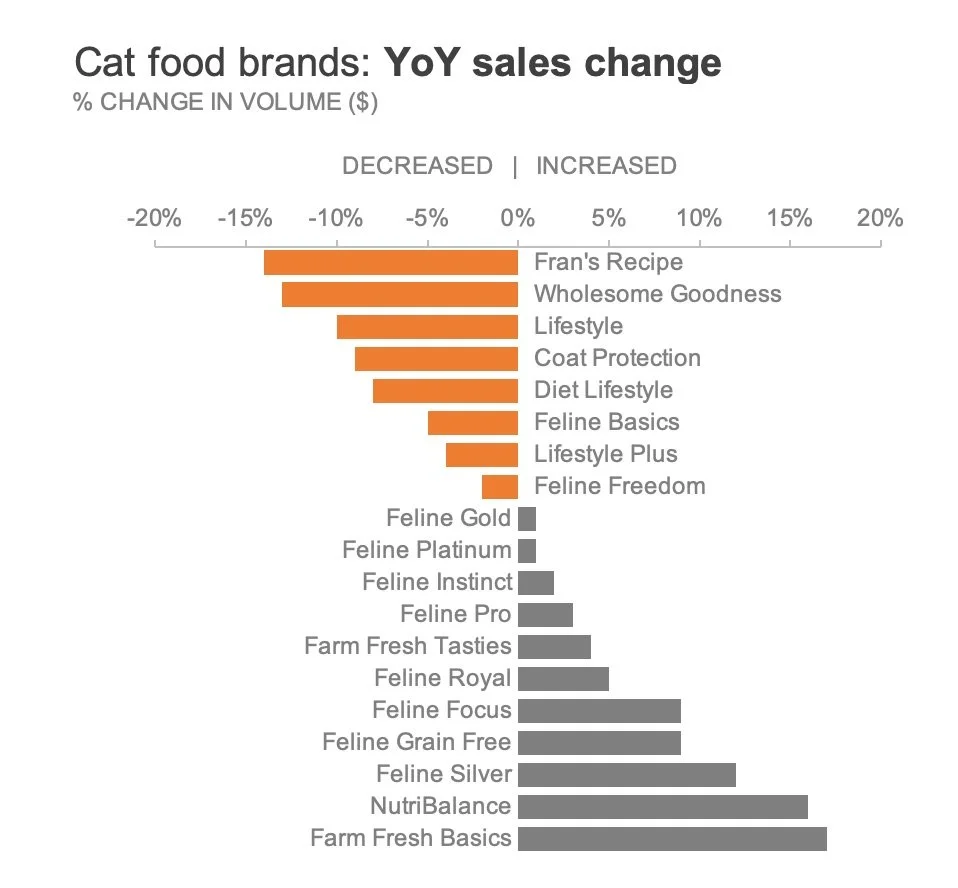
Once a neutral baseline is established, color can be introduced strategically to signal specific insights. Consider a scenario where an analyst needs to draw executive attention specifically toward pet food brands that experienced a decline in sales over the year. To emphasize these problem areas, an analyst might choose to color only the bars representing declining sales, leaving all other data points in neutral grey.
Furthermore, considerations of accessibility and psychological perception play a critical role in color selection. Rather than defaulting to traditional red—which can sometimes carry harsh or overly alarming connotations—designers frequently opt for alternative hues such as orange. Orange effectively reinforces a negative sentiment or a downward trend while maintaining better accessibility and visual harmony for viewers with common forms of color blindness.
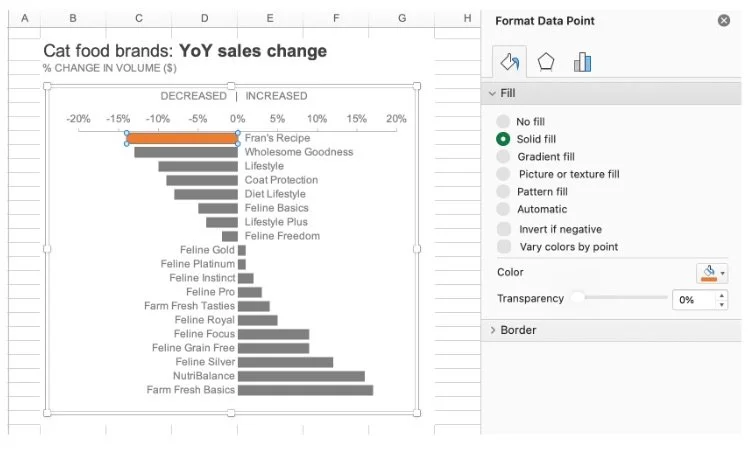
Executing this in spreadsheet software involves isolating individual data points rather than applying broad strokes to an entire series. By carefully selecting specific bars within a chart, an analyst can apply targeted fills. For multiple declining data points, efficient formatting shortcuts allow users to replicate these specific design choices quickly across related elements, ensuring consistency throughout the visual narrative.
Nuanced Hierarchies Through Color Intensity
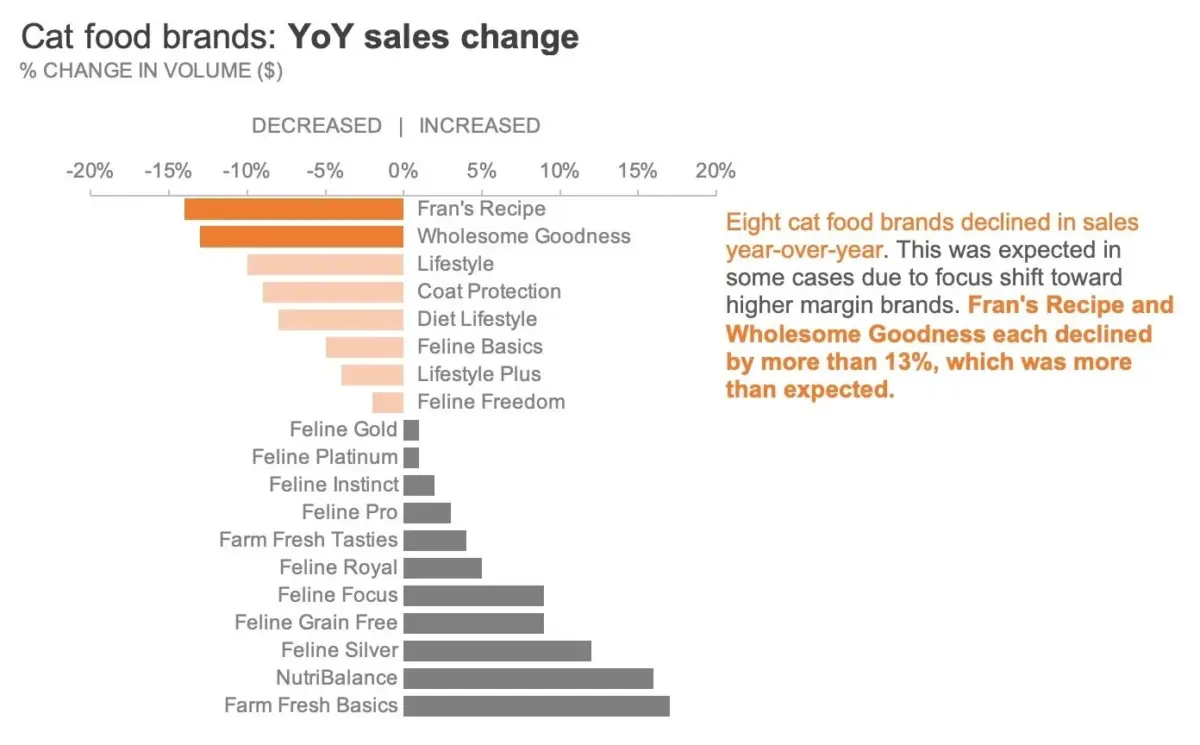
Isolating negative values provides a clear signal, but complex business datasets often require deeper layers of nuance. Within a group of declining brands, for instance, certain products may experience far more severe drops than others. In the pet food manufacturer example, brands such as Fran’s Recipe and Wholesome Goodness may have suffered the steepest declines among all analyzed products.
If an analyst simply colors every declining brand the same shade of orange while keeping growth brands in grey, the visualization highlights the general trend of decline but obscures the relative severity between different failing products. Conversely, making only the two worst-performing brands orange while turning everything else grey would completely lose the broader signal of which products experienced any decline at all.
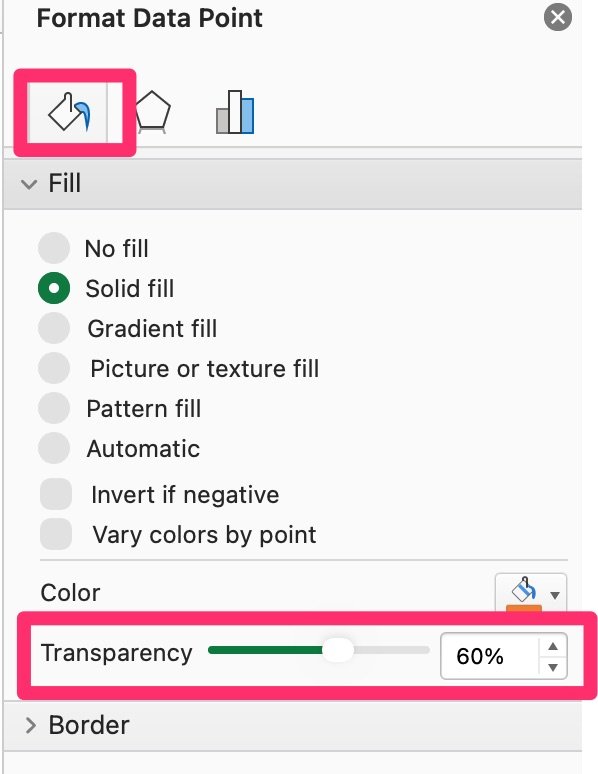
To solve this analytical dilemma, designers employ varying levels of color intensity to establish a visual hierarchy. There are multiple technical approaches to achieving this effect within standard office software. One method involves manually selecting a lighter, paler orange hue for minor declines while reserving a richer, more saturated orange for the most significant drops. Another approach involves keeping a single color hue uniform while adjusting transparency levels within the software’s fill configuration settings. A third technique involves overlaying semi-transparent shapes with precise fill properties over specific data bars to mute their visual weight without altering the underlying data series.
By varying color intensity in this manner, an analyst successfully preserves the broad category of declining brands while simultaneously drawing heightened focus to the most critical business challenges.
Pairing Visuals with Words for Complete Clarity
Even the most thoughtfully designed chart requires context if it is to be consumed independently by an audience. In professional environments where a presenter cannot personally walk stakeholders through every data point, pairing the visual graphic with targeted explanatory text becomes essential.
Integrating a concise text annotation directly next to the relevant data points bridges the gap between raw numbers and narrative comprehension. When key words within these explanatory notes are bolded and matched to the exact same color used in the chart—such as the specific orange hue highlighting key declines—it creates an immediate visual tether between the text and the data. This intentional design choice allows audiences to grasp the primary takeaway within seconds, even when reviewing reports asynchronously.
Ultimately, color should always support the underlying message rather than distract from the data itself. The most effective professional charts rely on restrained palettes, purposeful highlighting, and clear contextual wording to guide viewers smoothly to the intended business takeaway. As organizations continue to refine their approach to data literacy and corporate reporting, the fundamental principle remains unchanged: technology can build a chart in seconds, but human judgment defines its meaning.